Make a Payment
Follow the outlined steps below to make a payment.
Navigate to and click on the More button.
Select Make a Payment from the list of options. The Make a Payment pop-up box appears.
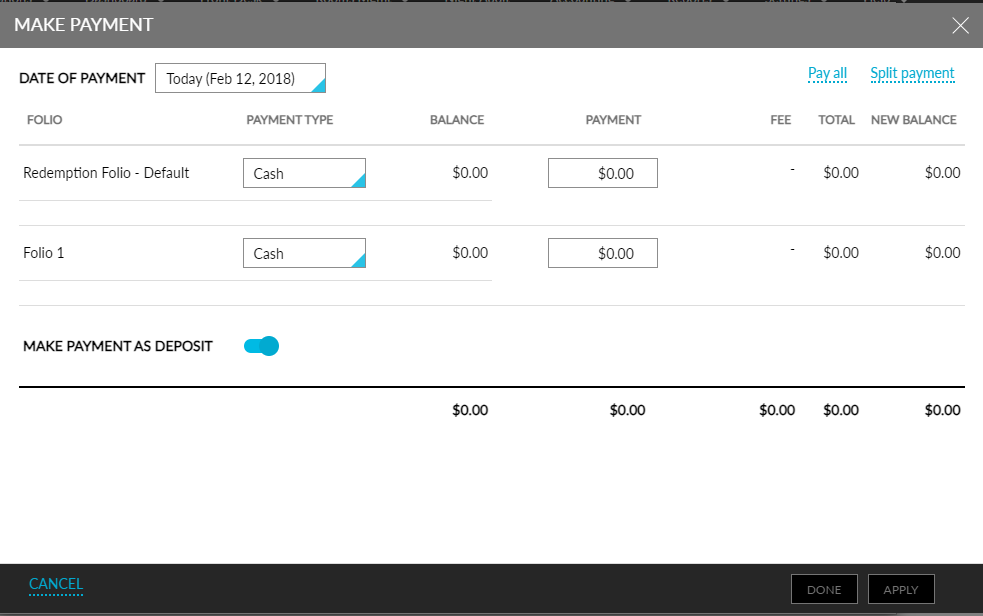
Look for the remaining balance amount to be paid under the Balance column and enter the appropriate amount in the Payment column.
Enter a Reference number and comment for the payment. Users can do so by enabling the required field in the Folio Defaults section in the Guest Accounting screen.
Enable the Make Payment as Deposit flag to make payment towards the deposit amount of the reservation.
When payment is made with the flag enabled, the deposit due for the reservation will be settled and the payment will be tracked in the Deposit Ledger. The payments made with the flag disabled will be tracked in the City Ledger.
Click Apply to make the payment.